Still a work in progress. Adapted from https://www.100daysofnocode.com/. See their full guide here.
“No-code” is a term to refer to software that allows you to build things online visually like you were building something from your imagination with Lego blocks. It’s kind of like the IKEA furniture of software – it is accessible, cost-effective, does the job, and you’ve always got some options for design.
Task#1: Create your own personal website
Create an account with mmm.
Upon creating your first page, you’ll be given a template to play with. Feel free to use this or start building from scratch. If you’re looking for some inspiration from a design perspective you can hit the ‘Chaos Monkey‘ button on the left side navigation bar which will auto generate a completely new page design. Or if it’s content you need help with, jump to this showcase page to see all the cool things other people have been building.
Sometimes a blank page can be a really daunting place to start, especially if copywriting or design isn’t your thing. To get over writers block quickly, check out Copy.ai which you can use to automatically generate marketing copy in seconds.
Another Option: Check out an alternative no-code website builder called Typedream that let’s you whip up super slick, professional landing pages in minutes.
Task#2: Create a Base for your Journal
Today we’ll be creating a database (A.K.A a place to store data).
Set up an Airtable account (if you already have an account skip to next step).
Head on over to Airtable and create an account.
Create a Base for your journal
When you first enter Airtable, click ‘Add a base’ which will give you a few options. We want to ‘Start from scratch’ and this is just like creating a new Excel or Google spreadsheet. But you’ll come to see that although Airtable looks very similar to these two, it has some extra functionality under the hood which we’ll be exploring below.
Creating fields – setting up your journal inputs
Every time you create a base from scratch, Airtable will automatically give you 3 fields which are basically what you’d call columns if you were using either Excel or Google sheets. Those being; Name, Notes, and Attachments. One super cool feature of Airtable is that you can set the type of data each field has. For example, if you want to add images in there, you’d simply set the field type to Attachments. Add the below fields and set the type as outlined below:
- Day (Single line text)
- Date (Date)
- Tool (Multiple select). Add the following as individual options: Airtable, Zapier, Glide, mmm, the.com, Voiceflow, Tally, Softr, Notion, TrueSource, Scribe, Bubble, Coda, Typedream
- What I did (Long text)
- Images (Attachment)
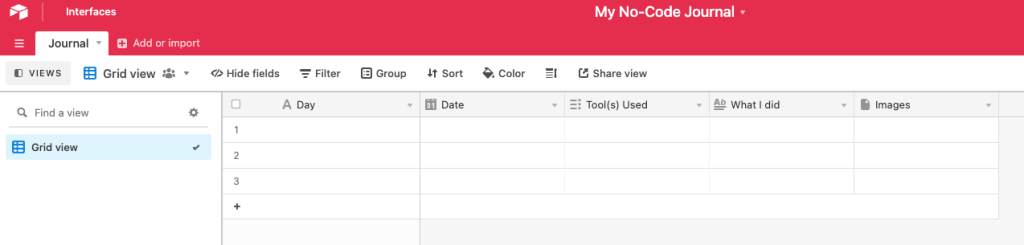
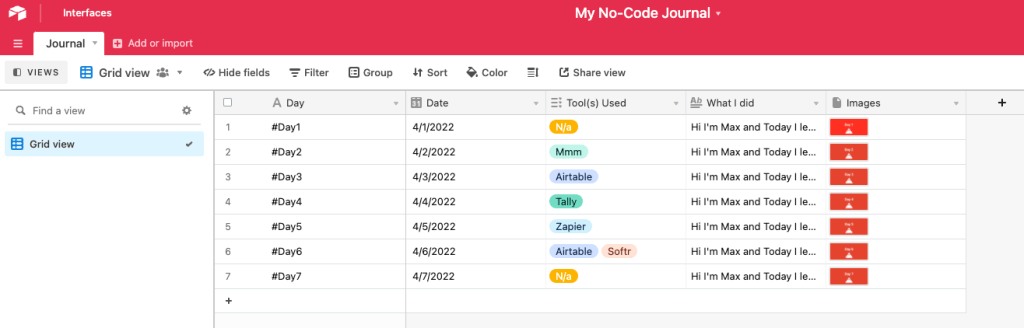
Set up a few test journal entries
Add in an introduction about yourself. Then play around with adding images to really customise the look of your journal and document your milestones. To make the next step more enjoyable, populate your base with some dummy data, so you have at least 6+ records.
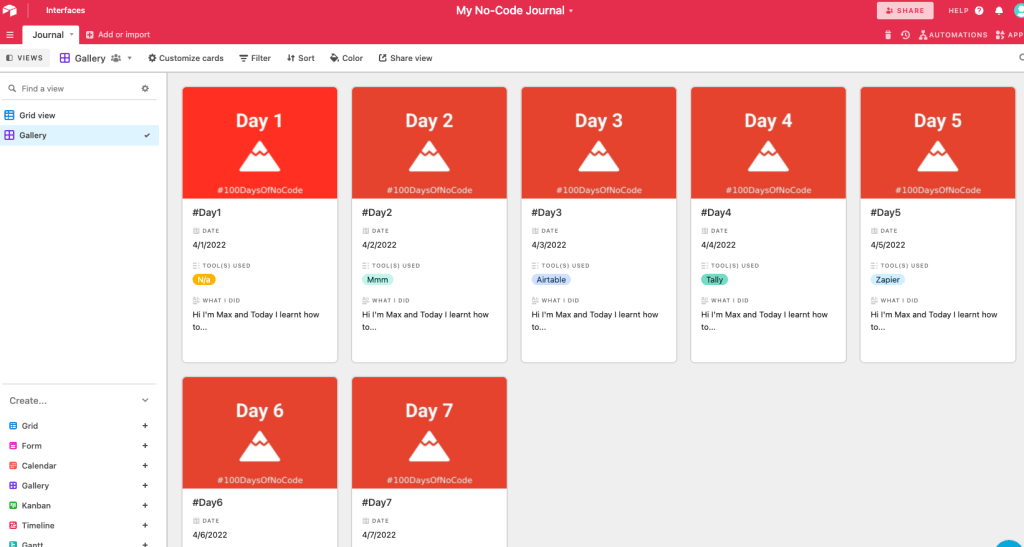
“I Like The View” – Choose how you want your journal to look
Another cool thing about Airtable is that you can create different views of your base. For example, you can transforms your lines of data into a window of tiles using the ‘Gallery View’. To do this, simply click on ‘Gallery +‘ in the lower left hand side of the screen. Then click ‘Create new view‘. You should then be presented with something similar to the below…
Make your journal shareable!
Finally let’s set up a link where you can share your journal with others. Simply click ‘Share view‘ that’s on the top horizontal navigation bar. Then click ‘Create a shareable gallery view link‘. You will then see a pre-copied link which you can paste into your browser.
Congrats on creating your journal base!
Task#3: Create your own Form
To follow on from yesterday’s task we’ll be creating a form to capture your daily journal entries and send them straight into your Airtable base. Whether you’re using a spreadsheet, a social media site, an app or a website, all of the content you see is data, and crucially it is both generated and stored somewhere. Data (or content) can be generated by you, your users, an API you’ve called or somewhere else. So whilst creating a form today will help us build out our digital journal, you’ll find that forms are a key ingredient to many no-code projects you create.
Create an account with Tally Take the time to read this quick start guide to get familiar with how Tally works. You should now be ready to start building your form.
As a reminder we’re building a form to capture our journal entries each day for this challenge. If you glance back at the Airtable base you created in last task, you’ll see that this form will need to capture…
- Day (single line text)
- Date (date)
- Tool(s) Used (multiple select)
- What I did (long text)
- Images (attachments)
To get started, simply press the / slash command on your keyboard and you’ll be presented with the list of blocks you can add to your form. You can use a simple ‘Text‘ or ‘Heading 3‘ to write each form question. For example ‘What date is it today’, ‘What tools did I use today’ etc… You will then need to select the correct blocks to capture the answers with. For example, you would add a ‘Date’ block underneath your date question.
Once you’re happy with how your form looks and functions, it’s time for you to test it by click on Preview! Go through it as a user would to check it’s working as you intended.
But you’re probably wondering, how does this data end up in my Airtable base…good question! You can follow these instructions to integrate your Tally form with Airtable which will automatically sync all your form responses into Airtable. Volia!!
Note If you want to be able to select multiple tools that you’ve used for one day of the challenge, you will need to use Tally’s ‘Checkbox‘ block for your Tool question and follow the steps at the bottom of this guide to make sure this syncs correctly with Airtable. Otherwise, you can use Tally’s ‘Multiple choice’ block, although you’ll only be able to select one tool each day. The alternative solution to both of these options is creating the form in your Airtable base by simply creating a ‘Form view‘ just like you did with the ‘Gallery view‘ yesterday.
Congrats on creating a form!!
Bonus … If you’re feeling ambitious at this point, we challenge you to utilize Tally’s advanced ‘Conditional Logic‘ feature – now this doesn’t quite fit with the use-case we’ve been building above, so feel free to create a new form for this. If there’s a case where a question in your form will need to change depending on someone’s answer to a previous question, you can try implementing some conditional logic. For example, depending on your respondent’s answer you can…
Jump to a page including redirecting to your Thank You pages
Show or hide blocks
Make answers required
Calculate a value
Read this to familiarize yourself with conditional logic in Tally.
Task#4: Create an automation
In last task, we built a form in Tally to capture all our new journal entries from this challenge. Now, if you remember, we purposefully didn’t capture the red cover image for each day through this form. That’s because in this task we’ll be creating an automation that generates each unique image for us.
Firstly, make sure to have open the Airtable base that you created for your journal on Task 3.
Now create an account with Bannerbear which is the automation tool we’ll be using today. Click on ‘Create a Project‘ and name it #task4. Bannerbear has a range of existing templates to use or you can create your own from scratch. But to save you time, we’ve created a template for you here. Click through to that and navigate to the three faint dots on the right hand side of the screen – once you’ve click on it, hit ‘Add to project‘ and then ‘#task4‘ as this is the project you want to add the template to.
Now that we have a shiny template in our own project space, it’s time to hook up Airtable. To do this, we’ll first need to click on our account image in the top right hand corner of the screen and hit ‘Settings‘. This is where you’ll need to insert your Airtable API Key, which you can find here. Press ‘Save’ and navigate back to ‘Projects‘ > ‘#task4‘. Under templates, click ‘#task4 Challenge’.
Although we’ve already connnected Bannerbear to our Airtable account, we now need to link it to a specific base in Airtable. So firstly hit the Airtable logo under ‘Integrations’ in Bannerbear. Before you fetch your Base ID, make sure to open up the journal base you created on task 3 of the challenge. Now click ‘Help’ and navigate to ‘API Documentation’. Here, copy your Base Id; generally looks something like this: app123456789ABC. And paste this into Bannerbear, along with the Table Name too. Then hit ‘Save & Connect‘.
We’re now finally getting into the juicy bits. Just like we did with Tally and Airtable yesterday, it’s time to map our fields in Airtable with Bannerbear.
Hold up…why are we doing this?? If you think about it, in order for Bannerbear to automatically generate unique cover photos for each day of the challenge, it needs to firstly be connected with the right base in Airtable (which we’ve already done) and know exactly what data to add to the cover photo. The template we’ve created has a mix of static and dynamic data – what this means is that parts of that template will be the same for every photo (= static) and other parts like the ‘Day Number’ will change on each one (= dynamic). Crucially, we need to tell Bannerbear what dynamic data from our Airtable base to bring onto each unique cover photo.
To do this we first need to add one extra column to our Airtable base called bannerbear_image_url and add this as a URL field. Once added, make sure to add a dummy image URL into at least one record for that new column like I have below…
Here is the URL we used: https://cdn.bannerbear.com/sample_images/welcome_bear_photo.jpg
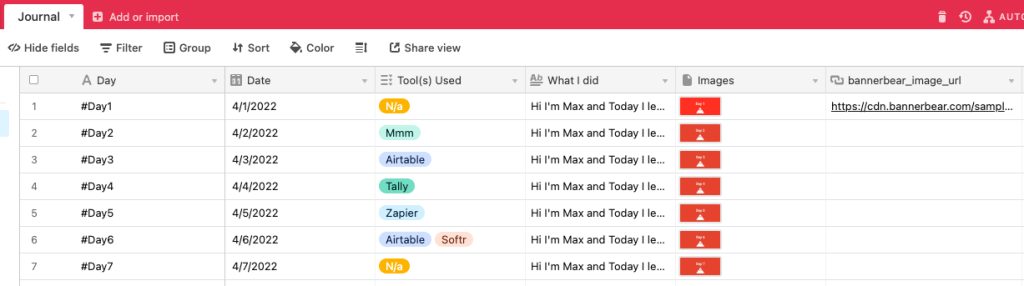
As Bannerbear lets you generate up to 30 images on it’s free plan, also fill up the ‘Day’ column to #Day30. So add ‘#Day8, #Day9 etc… as new records. When you return to Bannerbear remember to press ‘refresh‘ just so it recognises the updated version of your base.
Whilst you’re still in Airtable, there’s one more thing we need to do before we can get back to Bannerbear. Whilst Bannerbear will be doing the heavylifting of image creation for us, it’ll send these images to us as image URL’s. They will land in the extra ‘bannerbear_image_url’ column we created today. So we want to turn these URL’s from Bannerbear into image attachments when they land in our base. Fortunately, we can do this with Airtable Automations.
Steps to do this: https://scribehow.com/shared/Airtable_Workflow__4A7yh8MrRded_NaVWXe2Vw
It’s time to start mapping! You’ll see that you have 6 Airtable fields to map. To keep things simple you only need to map the ‘Day‘ to ‘Day Number (dynamic)‘ – the templates you can create on Bannerbear are made of up layers and the only dynamic layer we have is ‘Day’ i.e. this is the one part of the photo that will change based on which record it’s using to generate the image. For all the other fields click on the — option in the dropdown. Then we have to choose where we send these images – choose bannerbear_image_url You should be left with this 

Click ‘Save’ and then ‘Import’. All your images will be automatically generated – you can see them all appear if you click ‘View Images’ under ‘Imports’. And don’t forget Airtable too – pop back to your base where you should see all of them starting to appear. Once they’ve all arrived, you can play around with your ‘Gallery view’, to see what your shiny new images look like. Read more about how you can customise your gallery view here.
And that’s that! Hopefully this exercise has shown you what can been done with design automation and all the potential usecases that follow like digital certificates to social media scheduling.
Task#5: Create a directory of resources
Today we’ll be creating a resource directory!
You may have a list of things in a spreadsheet somewhere or written down in a physical notebook. For example, you may have a list of the best coffee places in town, your favouriate sports players or TV shows. With no-code you can turn this list into a visual website.
Here’s one example; the UK’s largest list of Vietnamese restaurants. All built with no-code (of course). You’ll be creating something similar today for the digital journal that we’ve been building. Or if you’d like to apply this lesson to another usecase, go for it!
1. To get yourself familiar with how Softr works, first read this guide here which will get you familiar with the basic terminology used, the interface and how it works at a high level. And of course, create an account.
2. Now sign-in to Airtable and jump to your Journal Base. If you’d like to freestyle this with another usecase (e.g. a list of your favouriate coffee shops) it’s best if you create a new Base in Airtable and add at least 10 records worth of data into your new Airtable table. For example, this could be your 10 favouriate cars or Youtube channels. To make the end result look great, add a column for images related to your idea. For those sticking with the digital journal, we can use the images generated from Bannerbear.
 Tip Before you gather this list, think about the data you want to include for each record. For example, if you’re creating a list of the best coffee shops in town, you’ll want to have the name, location, shopfront image and some other information about each one. This will help inform what field types you need to add into Airtable. For example, to store images about that coffee shop, you’ll have to use the ‘attachments’ field type.
3. Once you have added your data into Airtable, jump back into Softr, and create a new application by starting from scratch. Feel free to begin adding different blocks like headers, hero and more to your blank page. Most importantly, you need to add a ‘List Block’ which you can find out more about here.
4. Once you’ve added your List Block, make sure to connect your Airtable account with Softr. By clicking on the list block, Softr will walk you through the steps to integrate both tools together.
5. Now it’s time to configure your ‘List Block’, so that it can begin to pull through the data from your Airtable base, whether thats for your digital journal or another usecase. To do this you’ll need to toggle on ‘List Item’ fields and map these to the corresponding fields you have in your Airtable base. For example, you can toggle on the ‘Text‘ type in Softr and map this to your ‘Day‘ field in Airtable. Read this for more detail. This is when your UI (frontend) connects to the backend (data). Once this is done, you’ll have mapped Airtable successfully to Tally, Bannerbear and Softr this week already – this should start to give you a sense of the power that lies in connecting different no-code tools together. It’s just like one big set of Lego we’re playing with here!!
6. Once you have the correct data coming through to your ‘List Block’ in Softr, you can start playing with the look and feel of it by clicking on the  icon at a ‘Block’ and ‘List Item’ level.
7. Once you’re happy with the page you’ve created, it’s time to publish your site or you can preview it beforehand. Read this to see how.
8. Congrats on creating your first resource directory. You should now have a home for your digital journal, and as Softr syncs with Airtable, whenever you add new journal entries they will also appear on Softr….cool huh?!
Task#1 to Task#5: Recap
Whilst very exciting, learning any new skill can be a little overwhelming and exhausting! That’s why today it’s important for us to put down our digital tools and reflect + process what we’ve learnt this week. Just to recap, this week you’ve built…
A personal website to build an online presence
A journal to track progress
A form to capture data
An automation to save time
A resource directory to share curated information
All without writing a single line of code! And for these projects, you’ve used a total of 5 no-code tools including Airtable, Tally, mmm, Softr and Bannerbear! That’s pretty impressive!
Find somewhere quiet and write down your thoughts on the below three questions…
- What were your key takeaways from this 1st week?
- What did you enjoy most from this 1st week?
- What do you want to dive deeper into or learn more about in the coming days and weeks?
Answering these questions will help you process what you’ve learnt and pinpoint tools or topics that are most interesting to you.
Task#6 Create a personal wiki
Today we’ll be creating a personal wiki. What!?
It’s essentially a space to organize your life. Your ideas, goals, projects, shopping lists, journal and more. Check out the template gallery for the tool we’ll be using today. This should give you a feel for scope of things you can create.
1. First, familiarize yourself with Notion by watching this mini series of six short videos.
2. Now create an account with Notion and open it up. When you press the / command you’ll be presented with a list of blocks to add to your pages, all of which can be re-ordered, re-sized, re-designed and configured in a customizable way. Think of it like digital Lego at your finger tips.
3. Follow this video to start building your personal wiki. You’ll create your homepage (or dashboard) and related sub-pages. The real work starts when you begin filling out your sub-pages. For example, if you have a book page, you may want to add a reading list and tracker to it. This is the point at which you can let your imagination run wild. Checkout different tempates here or something like this.
4. Of course, you can use the templates they provide, but to get to know Notion, it’s best to build from scratch yourself. To do this, in a lot of cases, you’ll want to use Notion’s inline database block, especially for something like a reading list. Follow this video to see how. It’ll feel very similar to what you have already created in Airtable so far. And this is the beauty of Notion – your doc isn’t just a doc anymore. Instead of having to write your list of books as static bullet points, you can add them as records in your database, which can be filtered, grouped, sorted and viewed in pretty much anyway you like.
5. As this will be your digital home, you can start to make it feel like your own by adding emojis, cover photos for each page, gallery views for your databases and more. Read this to start putting your unique stamp on things.
Your Notion page doesn’t need to just be a Notion page. You can turn it into a website using Popsy, which acts like an extension of Notion by giving you the power to add custom themes, fonts, colors, backgrounds, logos, navigation bars, buttons, social links, galleries, and much more—everything you need for a functional website. So if you’re looking to create a quick landing page, CV or something else, we recommend you take it for a spin. Watch this for a quick demo and start learning here.
It’d be rude to mention Notion without also mentioning Coda, which is a very similar tool and largely comes down to personal preference. Coda’s powerful tables, formulas, automations and packs is where it truly shines and gives you the flexibility to create custom mini apps.
If you want get started…
1. First, watch some of these videos to get yourself up to speed with the basics of Coda.
2. Create an account with Coda.
3. Then take some of these mini exercises to build your confidence in the tool.
Task#7 Create a mobile app
Today we’ll be creating a mobile app. Something like this. Very similar to the resource directory with Softr, but instead of a desktop view, it’ll be a mobile app!
Firstly we’ll want to organize our data. The three main components of an app are:
- Data
- Functionality (Logic)
- Design (UI)
Data is the foundation of any app because without it, there is no fuel to drive the functionality. The good news is that you likely already have some data sitting around in an existing spreadsheet from our previous lessons.
Let’s say you wanted to build an employee directory app. But as usual feel free to personalise as we go. All the data you would need to power that app would be a spreadsheet with the first row listing all the column headers:
- Name
- Title
- Phone
- Photo
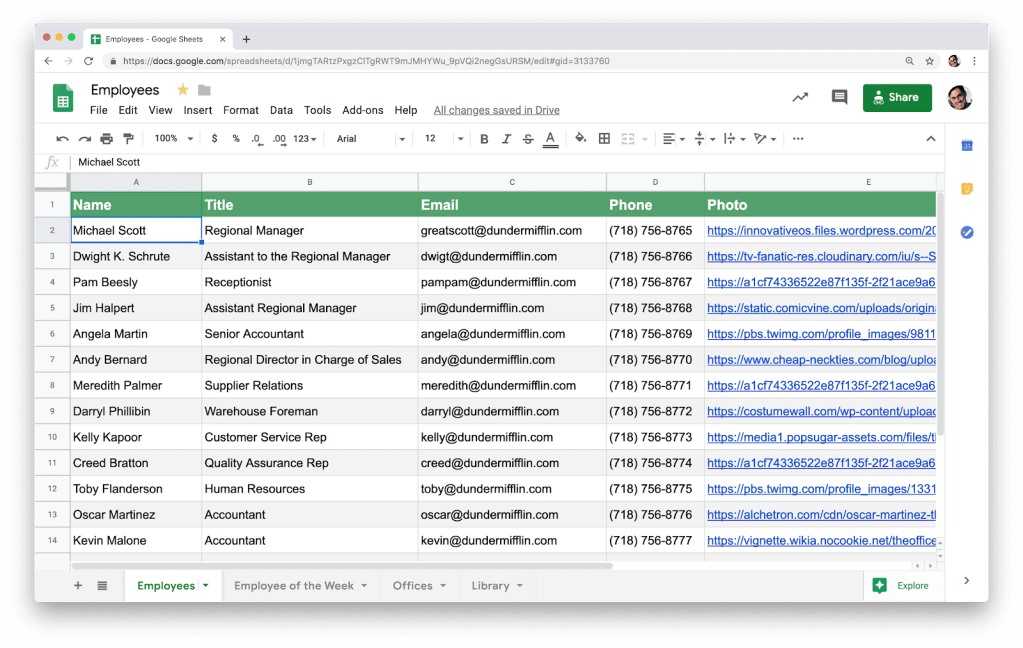
This spreadsheet is technically functional as a directory in its current state, but it’s boring and not easily accessible on mobile. Plus, you’re not able to quickly search by name or find out more on each person’s profile. That’s why we’ll be using Glide to turn it into an app.
But first, add in at least 10 records of data in line with the format above.
2. Google Sheets > Select the correct Google Sheet. And voila, Glide will instantly take this data and present it for you
3. But we can still add some extra functionality to make this more useful for us. Most apps on your phone are basically a collection of screens that show you different pieces of information and allow you to move back and forth between them as needed.
Glide let’s you add Tabs to help users navigate your app. In the employee directory example below, we have a tab for Staff, Locations, and Me. Add a tab to your app by navigating to the top left of your screen and pressing  . You’ll see that this has added a new tab to your app’s interface.

Open your favouriate apps like Instagram and see the tabs they use. Same concept here, but now you’re in charge.
Tabs navigate you to top-level screens, which is where a lot of your functionality lies. Top-level screens are often some type of list with summary info. For example, when you open up your email inbox, you see a list of all your emails with snippets of info: Subject line, sender, preview text, etc.
Each top-level screen you build will be associated with a specific tab from your Google Sheet. So for the new tabs you have created in Glide, add a new tab in your Google sheet and add some more records. For example, you may want to have a separate tab with all office locations. Once you’ve done this, make sure to connect your new tab with the correct data source. Note you may need to refresh Glide or your Google sheet, for it to come through as an option.
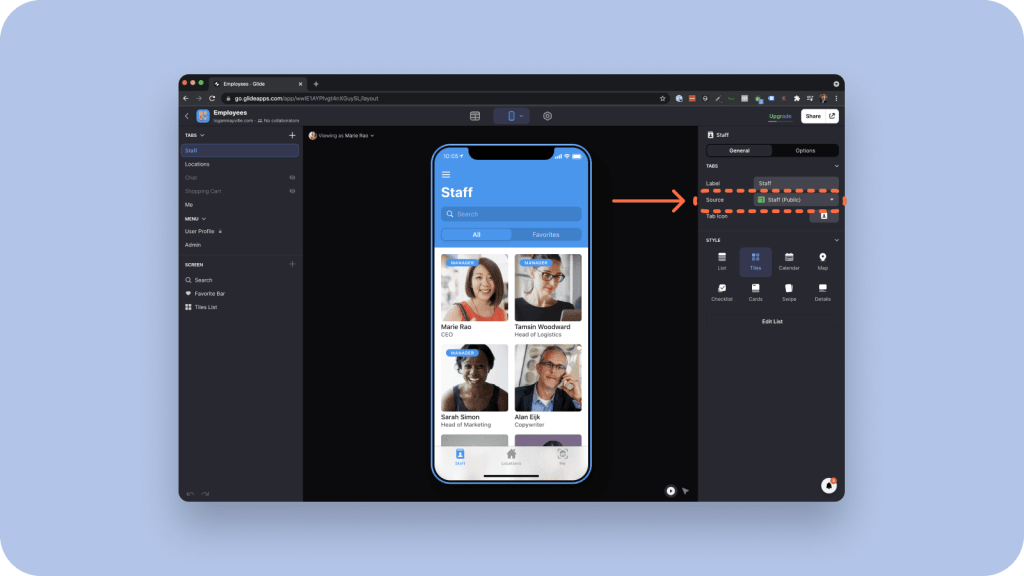
The layout of your list is entirely dependent on which data your top-level screen is mapped to. If your data source has location addresses, for example, you can display your ‘list’ as a map. Feel free to play with the layout of your data under ‘Style’ to see what works best.
4. If a user sees something on your top-level screen that interests them, they’ll tap that part and be taken to a details screen. In our employee directory example, this would be a profile page for each staff member
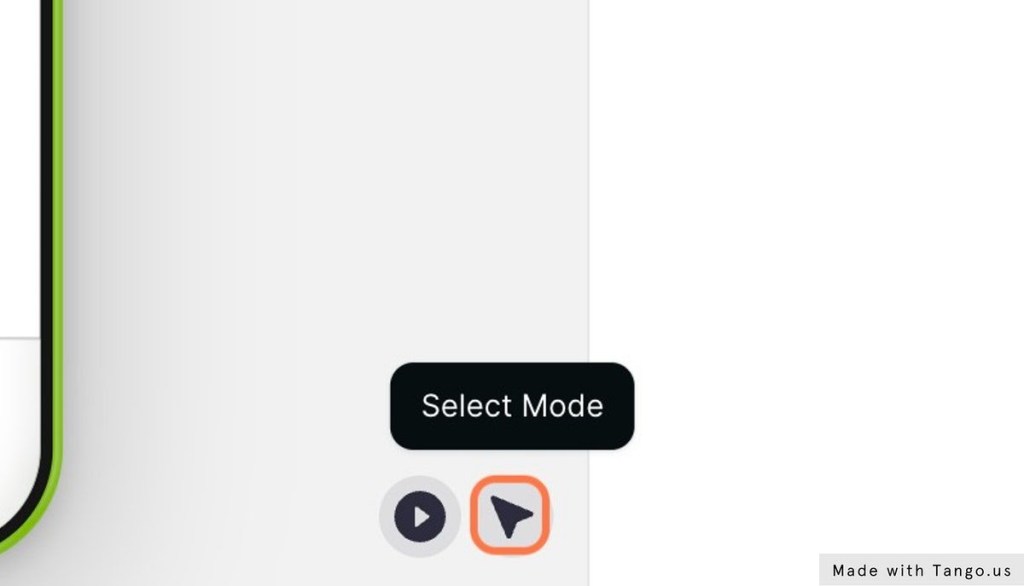
From here, you’ll want to use your intuition to think through all the different actions a user would want to take once they reach this details screen. In our employee directory example that might be to email their coworker, call, see where they’re located, etc. Customise what shows up on your details screen by clicking on ‘Select Mode’ and then into the details screen you want to edit as shown below.
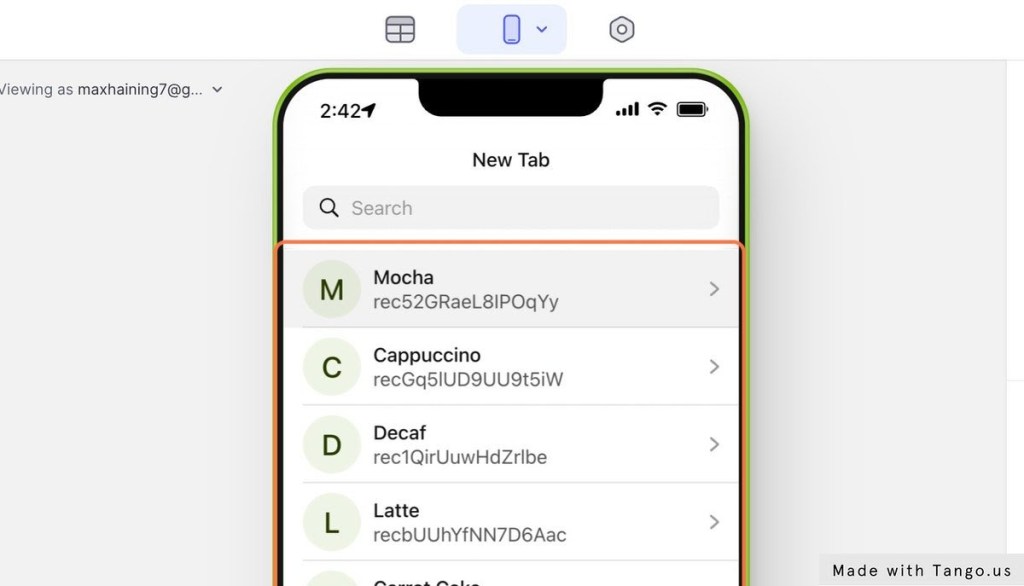
Note—With Glide, any update you make to one detail screen will automatically apply to all others from the same list. No need to go through and edit each screen individually.
At this point, you should have a functional app.
5. If you want your users to feel a sense of delight when using your app, you’ll want to polish the appearance. Colors, typography, icons, themes… There are virtually limitless ways you can customize your app.
Just toggle the view to “Appearance” using the icon at the top of the app editor to see what’s possible.
6. Once you have your app looking just how you want it, Hit the “Publish” button in the top right of the app builder screen and you’re all set.
Hit the red button below to share what you’ve learnt and built!
Bonus
If you own an iPhone, iPad or Mac, you can take this task! To flip things from the above, using Universe you can build your very own website all from your mobile phone Imagine, you could be building a website on your commute or whilst your watching TV, just with a mobile phone…crazy!
Follow this tutorial to build an online store. Or just feel free to have a play with the tool.
Task#8 Create a data product
Today we’re going to be creating data (information) products and show you how to leverage publicly available data.
1. Firstly, create an account with TrueSource
2. To get to know TrueSource and how it works, let’s first build a super simple data product. In this case, we want to build a filterable list that visualises all stations and lines in the New York City Subway System. Now, all this data is readily available on the New York City website but it’s not presented in a useful way for people to use who are travelling around New York. That’s where we can help.
3. To get started, download the data related to the New York City Subway System.
4. Follow the steps in the below tutorial. You’ll notice that to create a ‘product’ in TrueSource, you need to add a ‘Product’ name (which is equivalent to a ‘Base’ name in Airtable) and a ‘Table name’ (which is just like a table you’d add in Airtable within a ‘Base’). In the CSV file you’re uploading there’s lots of data related to each Station – that’s why the tutorial shows us how to remove specific fields, so only the most important information is shown to users.
5. Hope you enjoyed putting this together! Now let’s go through the gears and build a more sophisticated data product. But what do we actually mean by more ‘sophisticated’?? Well in the case of TrueSource, we’re able to relate tables of data together and show those relationships on the frontend. For example, when you connected Softr to Airtable, the data coming through to Softr was only from one table. We can connect multiple tables (or in this case, separate CSV files) to TrueSource and then define how these tables of data relate.
Hold up
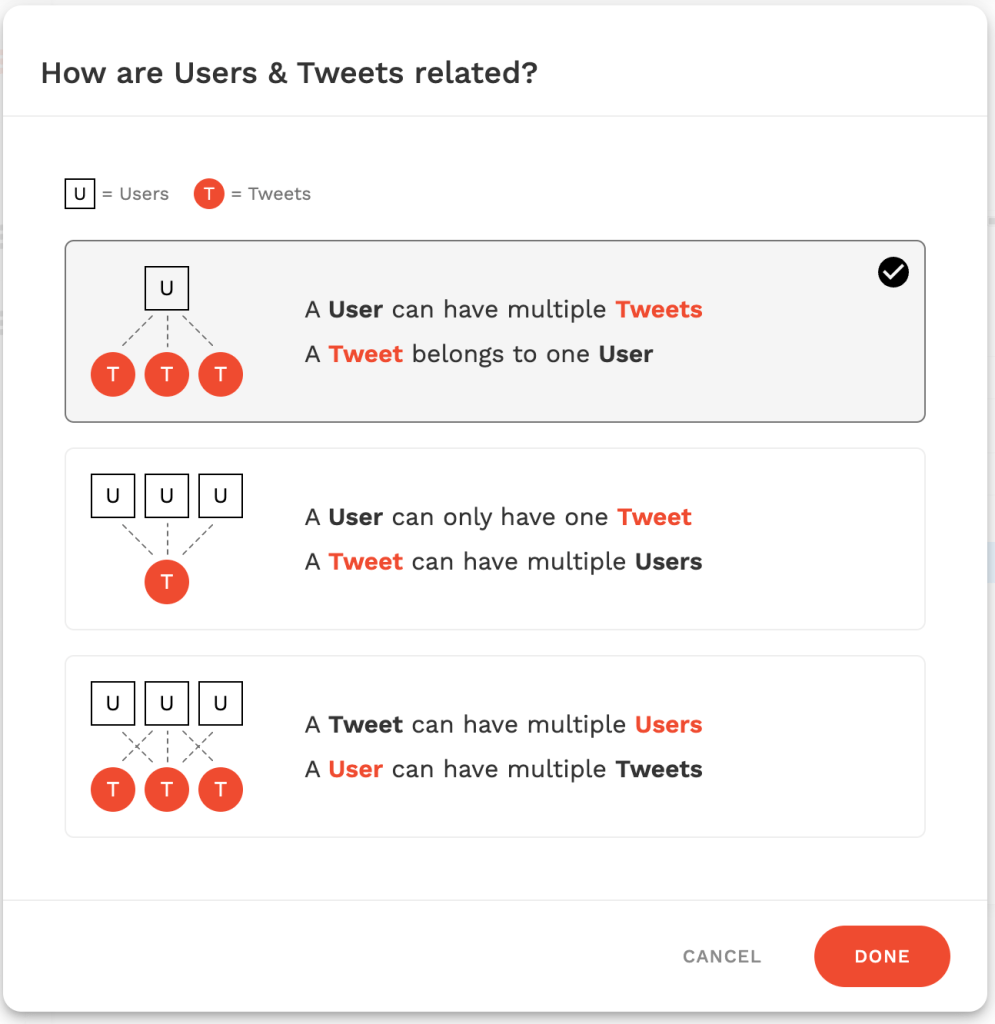
Whilst we’re here, it’s a good time to introduce you to the idea of relational databases; something you’ll need to know about as you build more powerful no-code applications. There are primarily 3 types of relationships in a relational database…One to One (A person has a Phone Number and that Phone number belongs to 1 person)One to Many (A company has many employees, but an employee works for 1 company)Many to Many (A student can take many courses in a semester, a course can be taken by many students in a semester)To make this more tangible, when you’re setting up your relationships between tables in Adalo (another no-code tool which we’ll dive into in Phase 3 of the program), it presents you with these three options as described above. In this case, the relationship between the ‘User’ table and the ‘Tweet’ table is ‘One to Many’ as a user can have multiple tweets but a tweet can only belong to one user.
6. This should hopefully be a good primer to building this more ‘sophisticated’ data product in TrueSource. Again before you start, download the CSV files required.
7. Now you’re ready to follow along with the video tutorial below and build a data product on New York City’s Park System.
8. You should now have a second data product created today! Quick work! You’ll learn more about relational databases in Phase 3 of the program, so if you’re still trying to wrap your head around it, that’s totally fine – it’s hard! Anyway, you’ll see from this video that TrueSource tries it’s best to map the relations for you, to do the heavy lifting.
If you’d like to learn more about databases, here are some extra readings:
https://blog.airtable.com/how-to-design-an-effective-relational-database/
https://www.adalo.com/posts/relational-databases-for-people-who-dont-know-how-to-code
Task#9 Create a Wireframe
Today we’ll be designing a wireframe. This could be a landing page, an onboarding screen, a user profile page or something else.
The point is, when we’re using no-code tools, we’re often worried about making our projects functional but sometimes forget to make them useable. That’s why it’s super important to hone our design skills and there’s no better tool to do that than Figma.
1. Firstly, if ’wireframe’ is a new term for you, read this to get acquainted with what it means and the different types of wireframes you can produce.
2. You’ll see that wireframes are a great way to plan what you’re going to build too, making the build process itself far smoother. With this in mind, write down one or two screens related to a project you want to build. If you haven’t already got anything in mind you’d like to do a design mockup for, pick something simple with a clear purpose or goal to work through the exercise – for example a landing page, or an onboarding screen, etc. It could be something for a project you’re working on or just a fake page for practice.
3. With this in mind, create a low fidelity sketch or wireframe of the screen you want to design (Note: design something desktop first but also feel free to design for mobile too). This will act as a good base from which to turn this into something closer to a high fidelity wireframe later on. To do this, you simply want to roughly sketch out (on paper if you like or using this template) the key sections (i.e. hero section, FAQ’s, pricing) and elements (i.e Call-to-Action button, images, text) of your screen. At this point, if you can, prepare some basic content that will fill your text and image elements – feel free to just use placeholders too!
4. Before we actually start designing this in Figma, it’s useful to first pick a font and 2-3 colours you will use. This can be one for Heavy use (deep/dark), one as a Complement to it (neutral/light), and an Accent (bright/vivid). Don’t worry too much about this though as you could just design in black+white, for speed.
5. Although we have more clarity on what we’re designing, we need to get ourselves famliar with Figma itself by watching this video. Create a Figma account too.
6. Now take the idea for the screen(s) you want to wireframe, and begin designing. It can be helpful here to first set up your design space in Figma by duplicating this template into your workspace, which will give you some structure to design within (for both desktop and mobile). Refer back to the best practices of this article to guide you though this process too.
7. Note that we’ll be taking your design from today’s lesson and actually building it using the.com tomorrow, so the more detail you can get today, the easier building will be. To improve the design of your wireframe(s), you can also invite your friends or project co-founders to collaborate on the same Figma page.
Bonus:
- You can turn your Figma designs into fully fledged mobile apps thanks to Bravo Studio. Feel free to check it out and have a play.
- If you’re looking for more guidance on design in the context of building no-code products, check out this workshop here.
Task#10 Build your Wireframe
In last task, we designed a wireframe. Today we’re going to bring that to life in a tool that’s pioneering a new approach to web development; a more collaborative one.
If you think about it, up until this point, website building is (and still is) solo-player. We use code (and now increasingly no-code) to build a website that’s ours and only ours.
What’s new with The.com is that they break any website you build into Blocks, which can be re-used and remixed by others, turning web-development into a multi-player experience.
And the best part of all of this is that YOU as the (no-code) builder can earn credit and get paid for your work (for the Blocks you create and that others are remixing). This means that the web isn’t something we’re just building anymore, it’s something we’ll start owning too.
Watch this video to learn more about what we think is a pretty exciting future.
Some extra reading:
- https://www.the.com/why/
- https://www.the.com/reuse/
- https://help.the.com/hc/en-us/articles/4418286847508-Jane-s-Cheat-Sheet
1. Whilst we have a better idea for The.com’s vision, let’s get into actually leveraging this tool to build out our wireframe. So first things first, create a The.com account.
2. To get familiar with the platform and how it works, watch these three videos here.
3. Now you should be ready to start building something yourself. To warm you up, we recommend you follow along this tutorial to build a mini donation site…
4. Now that you have your first project under your belt, it’s time to start building the wireframe we created yesterday. Just as they demonstrated in the above tutorial, open up your Figma file so you can reference this as you build. If you get stuck at any point, feel free to refer to these articles that may help you get unstuck.
We really hope today has opened your eyes to what the future of web development could look like (at a conceptual level) and of course, given you a taste of a fresh tool.
Task#11 Create a Step by Step Guide
If you cast your mind back to Airtable/BannerBear task, you’ll remember we built an Airtable automation. If your memory extends a little further, the steps for this were created using Scribe, which is the tool we’ll be using today! You may be wondering, but why would I need to create a step by step guide.
Giving first and sharing your learning is the ethos that makes the community special…and greater than the sum of it’s parts. And this form of sharing has manifested in what we more popularly understand as ‘Building in Public’ and rests on this idea (amongst others) that there is always someone a couple of steps behind you (as illustrated below). So even though you may consider yourself a beginner, to someone else you’re an expert.

That’s why it’s important for you to share your learning with others (you never know how this could impact someone) and one way to do that is through step by step guides. “But aren’t they like notoriously painful to create”? Yep! That’s why we’re pretty excited by Scribe as it flips this experience on it’s head. Beyond peer to peer learning, you can also apply this to company documentation, onboarding, customer support and more. Anyway, let’s get into it!
1. Firstly, create a Scribe account here. You’ll notice that it’s a free browser extension that you click on whenever you’re ready to ‘record’ a step by step guide.
2. To get yourself familiar with Scribe, watch this 5 min clip.
3. Now it’s time for you to create your own Scribe. In the spirit of ‘Building in Public’ and the no-code community more broadly, we recommend that you flick back through the past 2 weeks (nearly) of lessons since the start of the challenge and pick one that you’d like to generate a step by step guide for. This is great to reinforce your learning too! To help you pick one, simply ask yourself, “what lesson gave me an ‘aha’ moment” – let’s make sure that’s captured, so someone else can experience it too!
4. Before you start ‘recording’ your Scribe, it may be best to first run over the steps again as a refresher. Also, open up the correct tabs you’ll need. Then hit record! And don’t worry if you mess up the order of the steps too much – the beauty of Scribe is you can edit or even delete steps after you’ve recorded them.
5. Once you’ve recorded all the steps, it’s time for you to polish your guide in Scribe’s editor. For each step, you can add extra context as text to bring your point home or emphasise an important lesson.
6. You should now be ready to hit ‘Done’ and then ‘Share’. You can share this guide as a basic link. Or by hitting ‘Smart embed’, you can grab the Embed Snippet and add this guide into your Notion wiki.
Task#5to#11 Recap
To recap, this week you’ve built…
- A mobile app to showcase your lists of information
- A data product to communicate with Alexa / Google voice
- A personal wiki to organise your life
- A wireframe to make your ideas usable
- A website to bring your wireframe to life
- A step by step guide to document your learning
All without writing a single line of code! And for these projects, you’ve used a total of 6 no-code tools including Notion, Figma, Glide, Scribe, The.com and TrueSource. That’s pretty impressive!
By focusing on these tools, you have learned the most versatile no-code stack. That’s because you’ll be able to automate things (soon, with Zapier), organise everything (with Notion), build mobile apps (with Glide), store all your data (with Airtable) and create web apps (with Softr). Not to mention, these tools integrate nicely with each other too! Most (if not all) of your ideas will be buildable using this stack.
Find somewhere quiet and write down your thoughts on the below three questions…
- What were your key takeaways from these tasks?
- What did you enjoy most?
- What do you want to dive deeper into or learn more about in the coming days and weeks?
Answering these questions will help you process what you’ve learnt and pinpoint tools or topics that are most interesting to you.
Task#12 BUILD your own PROJECT
What should I build? Anything, seriously! There are no rules here apart from building something, ideally a digital product of some form. Ideas can be as simple as creating an e-product to building a SaaS product, or anything in between.
Pick your idea
Scope your idea
Pick your toolkit
Start your project
Wrap-up
Show and Tell – to your friends/family
Task#13 Deeper into AirTable #research
A learning sprint which can be broken into five key stages. This can be used to learn any tool. It works as follows…
1. Research
This is the stage to get familiar with the tool, what it’s best for, grasp some of the basic concepts, feel comfortable with the interface, the technical jargon used and pick up some time saving tips + tricks.
2. Follow
This is the stage to begin applying your basic knowledge of the tool on an actual project but with the safety of being able to follow along step by step. Mirroring an expert building a real project will allow you to pick up good habits in building as well as embed the core concepts you were introduced to in the ‘research phase’.
3. Build
This is when you become a creator. Whether you create a dummy project or your own idea, the research and learning you have done, will let you become a builder. So, get building! Once you have your first project in a tool, your confidence will rise and you’ll be itching to create more.
4. Launch (optional)
This is the phase you share what you’ve built with the world. Now, this is an optional phase, but one that will make you a more well rounded maker. “If you can build and sell, you’re unstoppable”. Use this phase to become a dual threat. Sharing your work is also is a great feedback loop as well, to help you improve your future projects, whether that’s related to the copy on your site, the UX or something else. There are a few levels on which you can share your work, so do what works for you.
- share with a closed group of trusted friends
- share within a community yo are in
- share on twitter or a social network
- share on Product Hunt.
5. Reflect
This is the phase that you take stock on what you’ve learnt, how you felt, what areas you’d like to improve in and just on whether you’d like to continue using this tool. When you’re a few sprints in, it’s great to be able to flick back to your reflections on past sprints, so that you can take these learnings into your future sprints for optimised learning.
Now, let’s get back to Airtable.
Read this article if you’re short on time. However, if you’d like a more comprehensive and deeper overview of Airtable, you NEED to watch this mini course (although, it does take longer than 30 mins!).
In the next task, we’ll enter the Follow stage of our Airtable learning sprint.
Task#14 Deeper into AirTable #follow
In last task, we ticked off the Research phase of our Airtable learning sprint. Today, we’re entering the Follow stage to build something with the support of step by step instructions. This is all before the Build stage when we’ll be setting you a mini challenge to apply your learning!
Today we’ll be building a CRM in Airtable. You may (or may not) need a CRM but by building this, you can pick up a very good overview of most of the cool features Airtable has to offer.
Follow along this step by step video to build a CRM in Airtable.
Task#15 Deeper into AirTable #build #reflect
Today we’re in the build stage. That means we’re removing the stabilisers and giving you a challenge to complete, to apply your learning!
Build something in Airtable that includes the following features:
- Linked records (we used this to connect our ‘Projects’ and ‘Clients’ tables in our CRM in last task)
- Formulas
- Views
- Lookups
- Filtering
- Grouping
Think of these features as ingredients to your recipe. If you’re struggling to know what to cook, check this out for inspiration or Airtable’s very own universe!
Try not to spend any longer than 30 mins.
2. Once built, it’s time to Share it with the world! Remember this is a key step in our no-code learning sprint. It’s a way for you to get feedback, inspire others and mark this day with a digital reference point for you to look back on.
3. To close this learning sprint, Reflection is key, especially as we’ll be focusing on another tool in next task. Ask yourself, what you enjoyed about the tool, where you might use it in the future and what areas of it would you like to dive deeper into. Here are just a few more prompts to think about…
- How easy/hard was it to get familiar with the tool’s interface?
- What were the features that I found most helpful/interesting?
- How easy/hard was it to find help/resources when I got stuck?
- Do I visualize myself building more projects with this tool?
- What things do I like/dislike about this tool?
Task#16 Deeper into Zapier #research
Zapier is an online automation tool that connects your apps and services. You can connect two or more apps to automate repetitive tasks without coding or relying on developers to build the integration.
Also, read this quick start guide.
What can I build in Zapier?
Watch this video and then take a look at some popular usecases here.
Key Zapier concepts and lingo.
Read this.
Task#17 Deeper into Zapier #follow
Build an automation by following step by step below.
The automation we’re building today will take information captured in a Google form as the trigger for Zapier to send an email or Slack message. It will work like this…
- Form is filled in from user
- Zapier Google Form Module is Triggered.
- Action to Send email or Slack message with a relevant message from the form.

Create a Google Form
Go to Google forms and Create a New form from a simple template
With the form Open, go to the Response Tab and click the Google Sheet Icon
(This will prompt you to create a Sheet to store the responses in).

Step 2 – Create the Action Zap
Log into Zapier and Create a New Zap
Name the Zap
Make this a habit to name the Zaps with a meaningful titles as a way to keep your Zapier space organised. You will thank yourself later.
- In the Trigger, search for and choose Google Forms
- Choose the Trigger Event New Response In Spreadsheet
- Choose or Connect you Google Account
Once the account has been connected the first time, it will be available to you in all subsequent Zaps and can be managed in the Apps section of the Zapier dashboard.
- Once Connected to your account, choose the spreadsheet from this list.
- This will be the sheet created by the Google Form in Step 1
- Choose the Google Worksheet (There should be only one to choose).
Step 3 – Test the trigger
In order to test the trigger is working, you will need to fill in and submit the form. This will give you some data to work with.
Click the EYE icon in the Google form on the Top right.
Fill in the Form and submit

Once the form is submitted, return to the Zap in Zapier and Test Trigger on the action
The Data you submitted in the form should be visible in the information returned from the test.
Step 4 – Create the Action
If you have Slack you can use the Slack action. If not, you can use the built-in Zapier email app.
Search for email and choose Email by Zapier
Choose Action: Send Outbound Email
Populate the required information, recipient, Subject and Body for your email
In the subject and body, make use of the information you have in Step one to make the email unique and meaningful. Here you are basically telling Zapier what information captured from each form submission, you would like to appear in each email sent. And note, that each email sent will dynamically update depending on what information each form submission has. See below

Now, choose continue and run the Test.
And voila! You’ve just automated a process!
Task#18 Deeper into Zapier #build #reflect
Build your own automation in Zapier.
You can’t just start building an automation without knowing what you want to automate. So first you need to think of a manual task that takes you a long time each week. And before you decide, keep in mind this quote from Bill Gates…
“The first rule of any technology used in a business is that automation applied to an efficient operation will magnify the efficiency. The second is that automation applied to an inefficient operation will magnify the inefficiency” – Bill Gates
Now use a tool like Whimsical to visually map out the process you’re automating and use this automation cheat sheet to help you here.
To push yourself, try to automate a process that will need to use the following Zapier features:
- Schedulers
- Formatters
- Filters
- Paths (note: this feature is only avalaible on Zapier paid plans)
2. Once built, it’s time to Share it with the world! Remember this is a key step in our no-code learning sprint. It’s a way for you to get feedback, inspire others and mark this day with a digital reference point for you to look back on.
3. To close this learning sprint, Reflection is key, especially as we’ll be focusing on another tool tomorrow. Ask yourself, what you enjoyed about the tool, where you might use it in the future and what areas of it would you like to dive deeper into. Here are a few more questions to think about…
- How easy/hard was it to get familiar with the tool’s interface?
- What were the features that I found most helpful/interesting?
- How easy/hard was it to find help/resources when I got stuck?
- Do I visualize myself building more projects with this tool?
- What things do I like/dislike about this tool?
 altLearners

You must be logged in to post a comment.